📥 Importing Calendars
The school calendar, the soccer team’s schedule, your work calendar: bring them in, and they sit on your AprèsSchool calendar next to classes and dinners, with who drives.
Account → Connections → Imported Calendars
What Importing Does
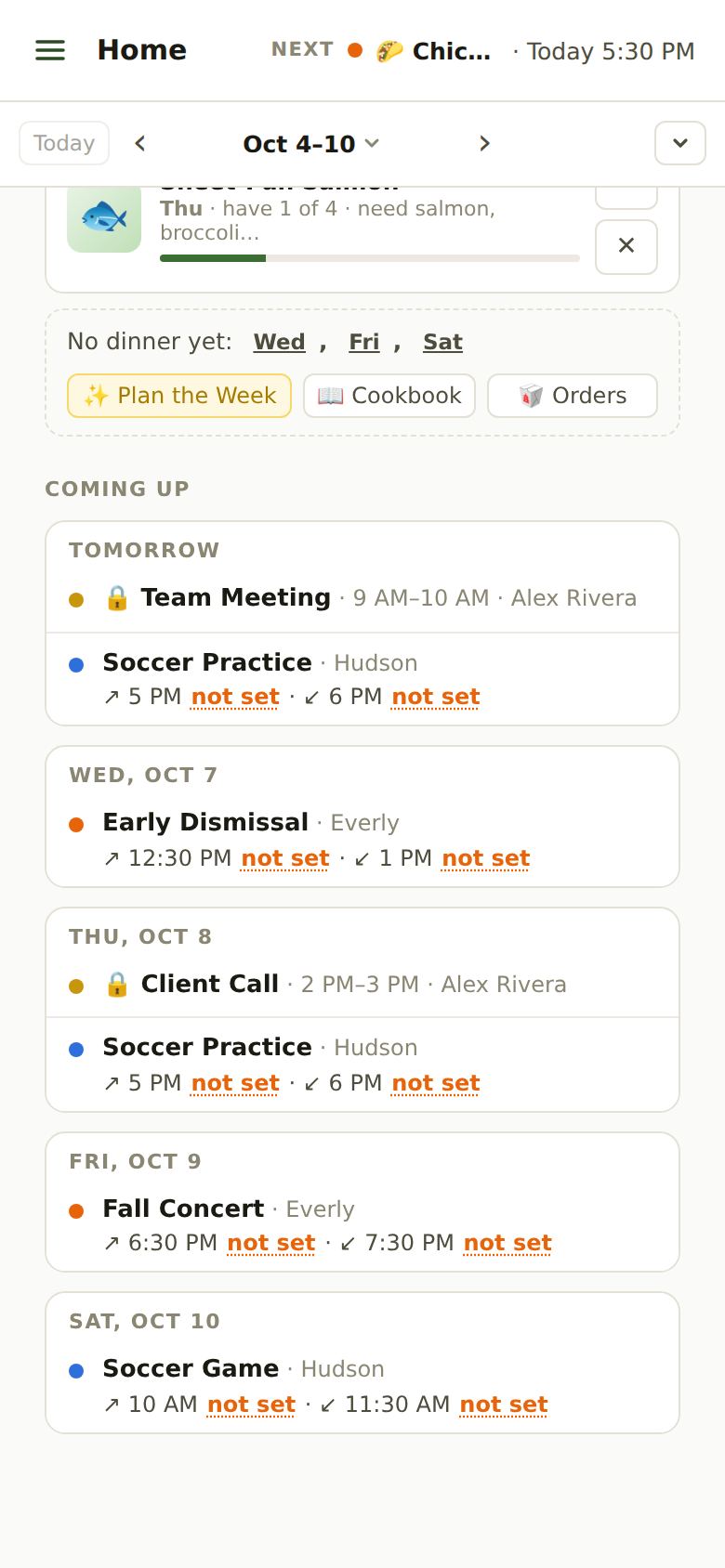
- The calendar’s events show on your AprèsSchool calendar and on Home’s Coming Up, in the color of the person it belongs to.
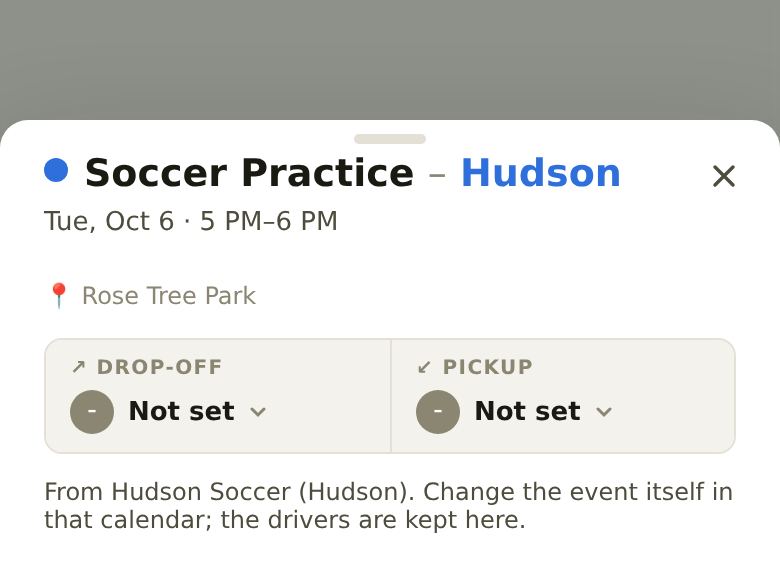
- For a child’s calendar, each event gets a drop-off and a pickup to fill in, like a class.
- Events are checked for clashes: the driver menu warns when someone’s busy, and Plan the Week knows who’s out at dinner.
- It only reads. Nothing is ever changed in the original calendar, and to change an event itself, change it there.
Adding a Calendar
Go to Account → Connections, and on Imported Calendars tap Add a Calendar (or Manage once you have some). Only a Parent or Planner can add one.
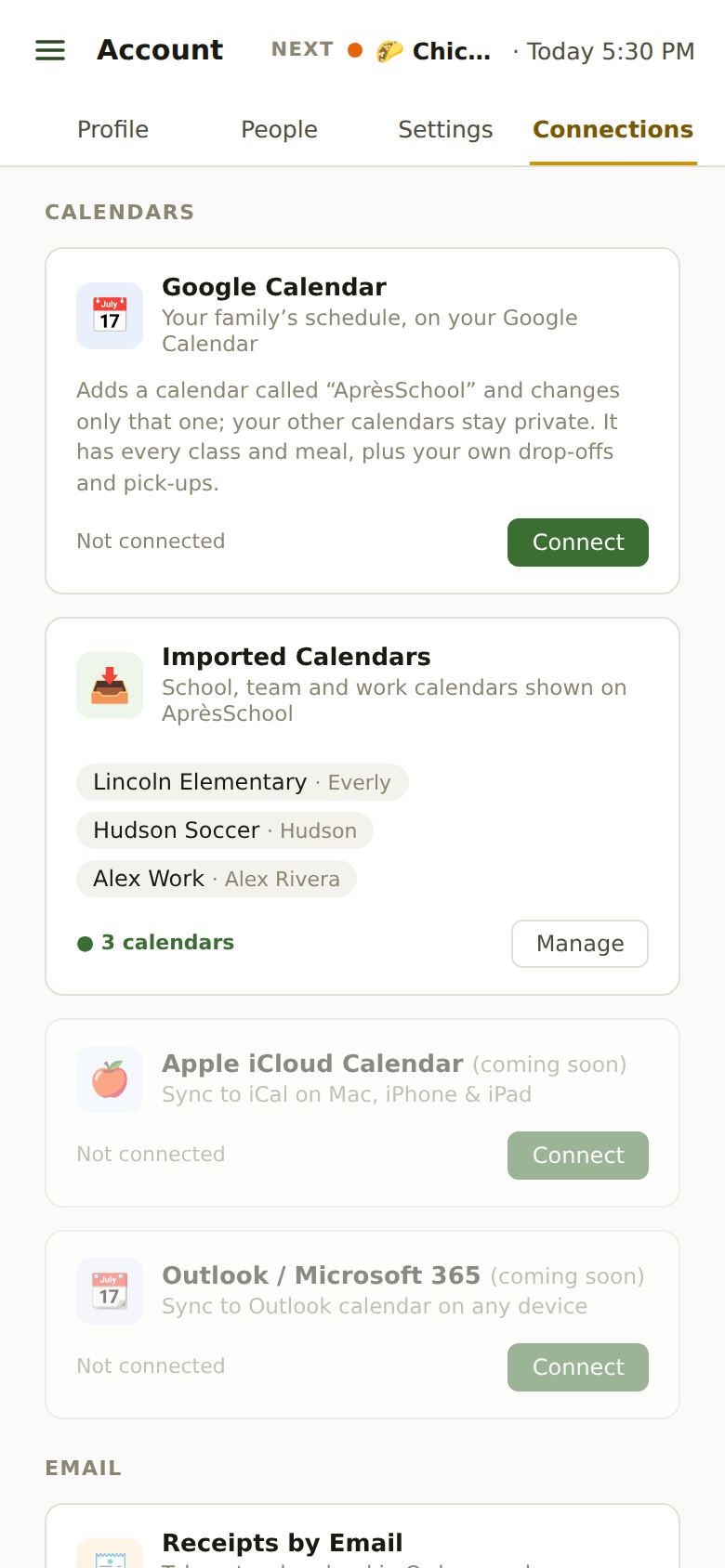
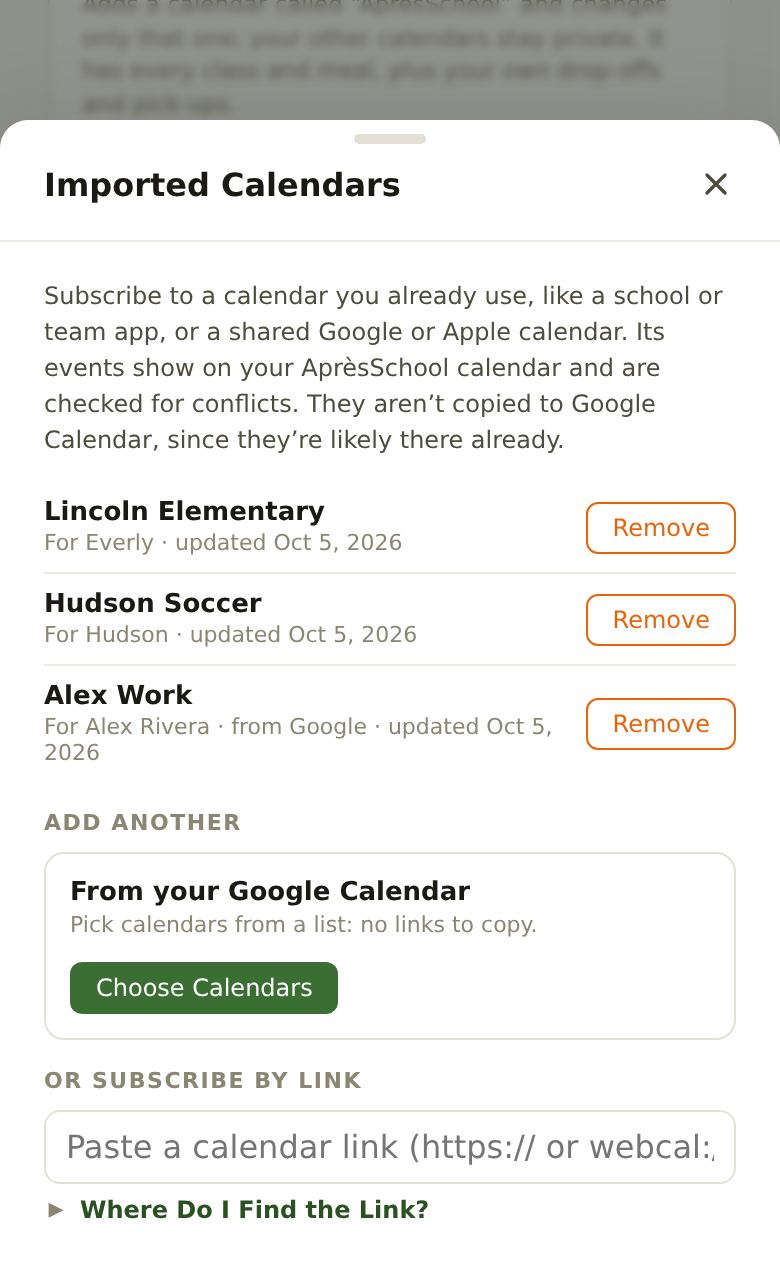
There are three ways in:
From Your Google Calendar
Tap Choose Calendars, sign in to Google and allow AprèsSchool to read your calendars. Tick the ones you want and say whose each is. No links to copy.
Google may show a warning that it “hasn’t verified this app”. That’s expected while Google reviews AprèsSchool. Tap Advanced, then continue. We only read the calendars you pick.
From Your iPhone’s Calendars
In the AprèsSchool iPhone app you’ll also see From your iPhone’s calendars: iCloud calendars and any other calendar on the phone. Tap Choose Calendars and allow access when the phone asks.
Subscribe by Link
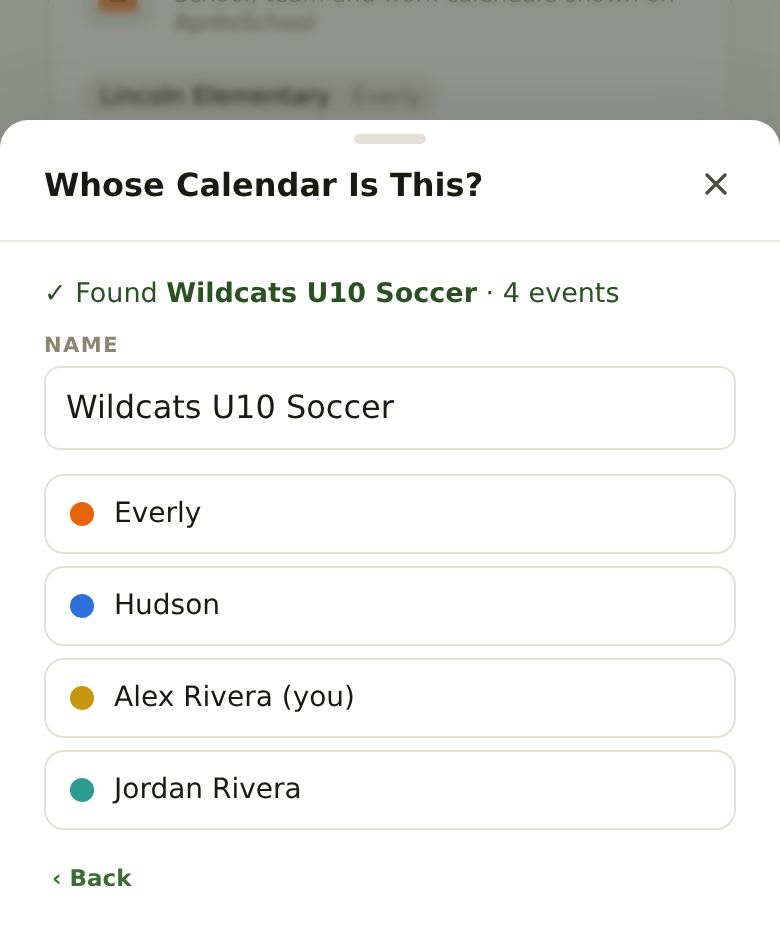
For school and team apps, and calendars someone shared with you. Paste the calendar’s link (it starts with https:// or webcal://). AprèsSchool checks it straight away and tells you what it found. Then give it a name and tap whose calendar it is.
Finding a Calendar’s Link
- School and team apps (TeamSnap, SportsEngine, ParentSquare…): look for “Subscribe”, “Sync to calendar”, “Export” or “iCal feed”. The school’s website often has one on its calendar page.
- Google Calendar: easiest with Choose Calendars above. For a link: on a computer, open Google Calendar’s Settings, pick the calendar, then Integrate calendar, and copy the Secret address in iCal format (not the public one). Treat it like a password.
- Apple Calendar: on a Mac, right-click the calendar, choose Share Calendar, tick Public Calendar and copy the link. On iPhone, use the app’s “From your iPhone’s calendars” instead.
- Outlook: in Outlook on the web, Settings → Calendar → Shared calendars → Publish a calendar, then copy the ICS link.
If AprèsSchool says a link doesn’t look like a calendar, it’s usually the address of a web page rather than the calendar feed itself.
Picking Drivers
Events on a child’s calendar ask for a drop-off and a pickup. Until someone’s picked, Home’s Coming Up shows an orange not set: tap it to choose. Or tap the event on the calendar and use its Drop-Off and Pickup menus.
- Choose No driver when a ride isn’t needed (it happens at school, or the coach drives).
- Drivers are kept in AprèsSchool, so they stay put when the calendar updates.
- Drivers get leave-now reminders on their phone, like for classes.
Private Calendars
A calendar you add for yourself (your work calendar, say) starts private: 🔒 Only Me. Everyone else in the family sees those times as Busy, with no titles or places, so the family knows you’re not free without seeing what you’re doing. Change it under Visible To in Manage. Only the person who added a calendar can change who sees it.
Hiding, Updating and Removing
- Hide one from your view: on the calendar, View → Show, and untick it. That’s only for you; it still counts for clashes.
- Updating: AprèsSchool checks your calendars for changes by itself. Tap ↻ in the calendar’s top-left corner to check right now.
- Removing: Account → Connections → Imported Calendars → Manage, then Remove.
- If one stops updating (a link was changed or turned off), the card says “couldn’t update”. Remove it and add the new link.
Imported Calendars and Google Calendar Sync
These are two different things. Importing brings other calendars into AprèsSchool. Google Calendar, the card above it on Connections, sends AprèsSchool out to your Google Calendar: it adds one calendar called “AprèsSchool” with classes, meals and your own drives, and changes nothing else. Imported events aren’t copied back out, since they’re already in a calendar of their own, but the drives you take for them are.
Still Stuck?
Email support@apresschool.app and we’ll get back to you. Or see all help articles.